
Home › Dictation › Dragon Quick Reference
Dragon Quick Reference
Everything you say to Dragon Medical One: editing, punctuation, vocabulary, Auto-texts, and the Dictation Box.
Not set up yet? Start with the setup course first.
Microphone control
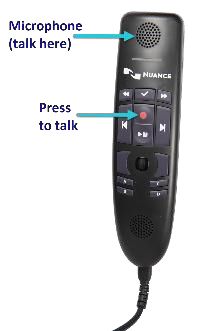 PowerMic
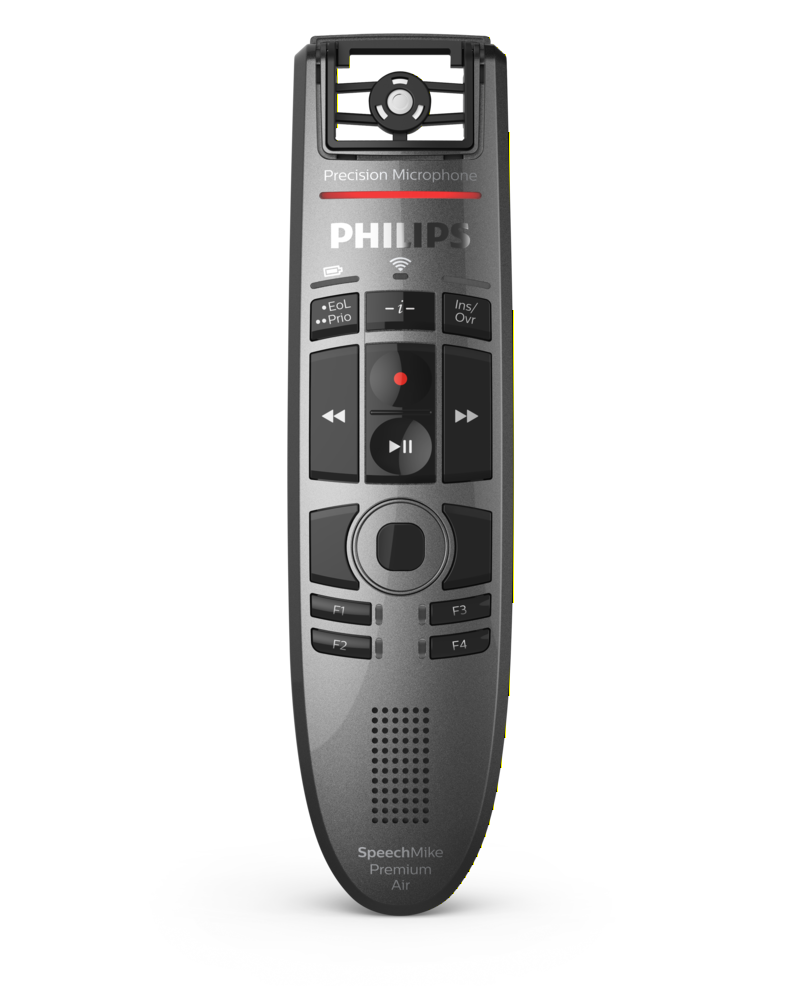 Philips SpeechMike
 Microphone is ON
 Microphone is OFF
PowerMic or SpeechMike
- Hold the microphone in your non-dominant hand
- Press and hold the red talk button to dictate; release to stop
Headset
- Position the microphone just below your mouth, about 3 to 5 fingers from your chin
- Select the microphone icon on the DragonBar to talk
- Pause briefly before and after commands so they are recognized
- Speak in full sentences, including punctuation
Correcting and deleting
- Scratch that
- Delete that
- Undo/redo that
- Select [TEXT]
- Select that (last dictated text)
- Select first/last/next word/all
- Select [TEXT] through [TEXT]
- Deselect that
- Correct [TEXT]
- Correct that
Lines, spaces, and caps
- New paragraph
- New line
- Insert before/after [TEXT]
- Cap that
- All caps that
- All caps on/off
Navigating
- Go to top
- Go to end
- Go to beginning of sentence/paragraph
- Go to end of sentence/paragraph
- Go back
Dictating punctuation
| Say | To type |
|---|---|
| Comma | , |
| Period | . |
| Exclamation mark | ! |
| Question mark | ? |
| Colon | : |
| Semicolon | ; |
| Open quote … close quote | "…" |
| Open paren … close paren | ( … ) |
Managing your vocabulary
Add words
- Say Add word or Add that to vocabulary
- Type the correct spelling
- Select Default Pronunciation, or select the mic icon to train the word
You do not need to press the talk button on your PowerMic to train a word.
Manage your custom words
- Say Manage vocabulary, search for the word or phrase, and correct as needed
- Select + to add a new word or phrase
Auto-texts
Create an Auto-text to bring in blocks of text with a simple voice command.
Add an Auto-text
- Highlight the desired text
- Say Make that an Auto-text
- Type the name (what you will say to open it)
- Select Apply All, then Close
Useful Auto-text commands
- Next/previous field
- First/last field
- Accept defaults (clears brackets and accepts all defaults)
- Field complete (accepts text in the current field only)
The Dictation Box
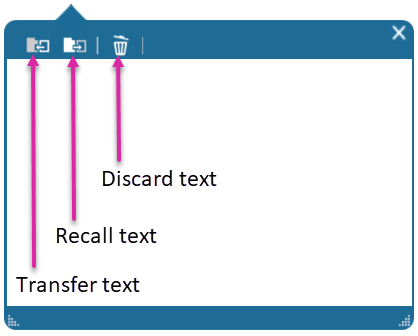
- Open/close Dictation Box: opens or closes it
- Transfer text: moves the text to where your cursor is
- Recall text: brings back the last transferred text
- Discard text: deletes the contents of the Dictation Box
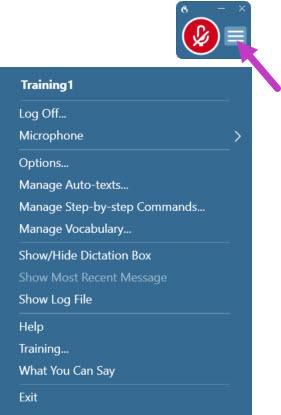
The DragonBar menu
Open the DragonBar menu (three lines next to the microphone icon) to change options, manage your Auto-texts, commands, and vocabulary, and access Help.
Get help
- Say Open help or What can I say
- Or from the DragonBar menu, select Help, Training, or What You Can Say
Training opens Learn Dragon Medical One: articles, video walkthroughs, and remote training scheduling.
For anything Dragon cannot answer, call the IT Support Help Desk at 417-347-4500.