Haiku and Canto Login Guide
Every screen from the app store to your first sign-in, including multifactor authentication (MFA). The screens advance on their own; tap a step to hold it there. A red circle marks where to tap.
The screens show Haiku on an Android phone. Haiku on an iPhone and Canto on an iPad look a little different but follow the same steps.
Before you start
Sign-in works only after your BYOD and Remote Access request has been submitted and processed, and after your Epic training or test-out.
Get the app
Steps 1 and 2, on the phone or iPad you are setting up.
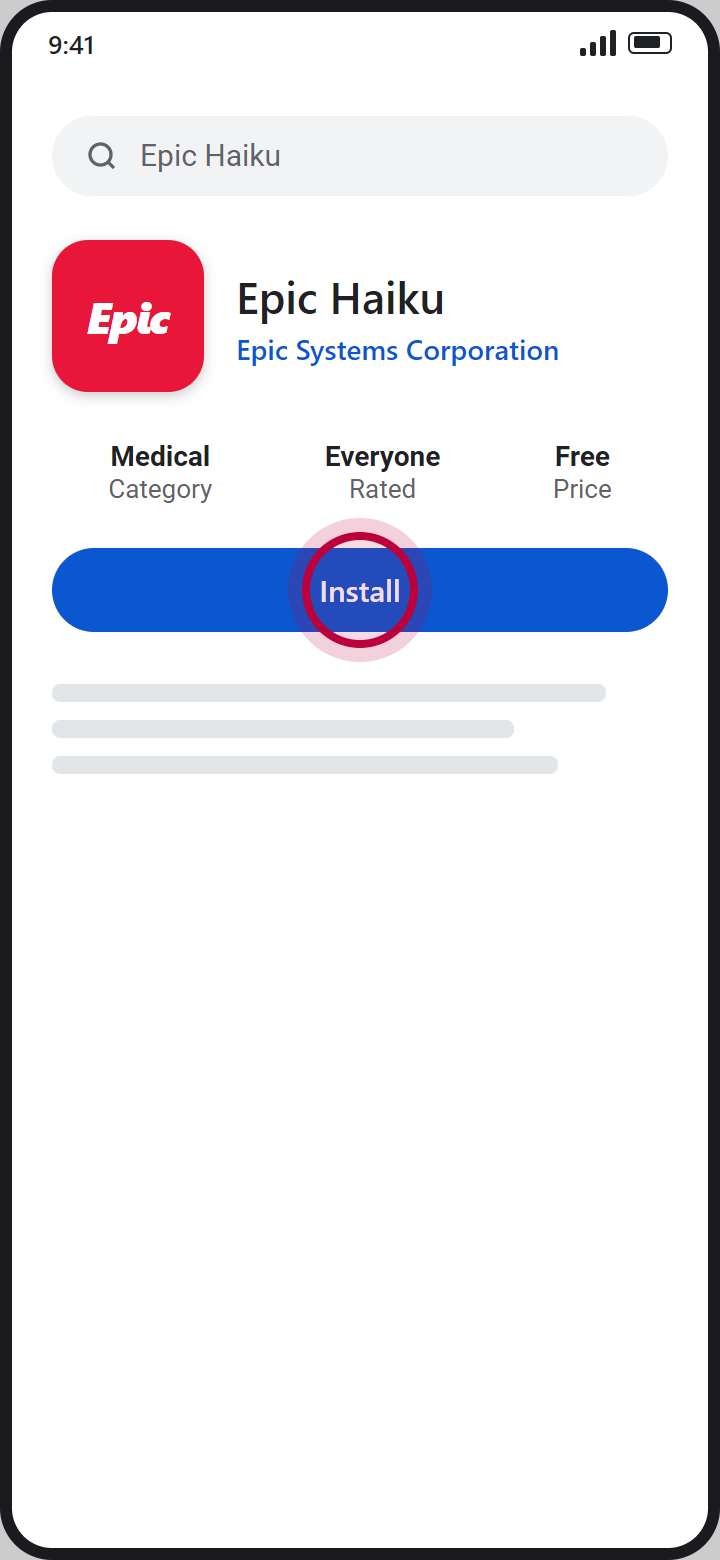
1Download the app
Download Haiku (iPhone and Android) or Canto (iPad only) from the App Store or Google Play.
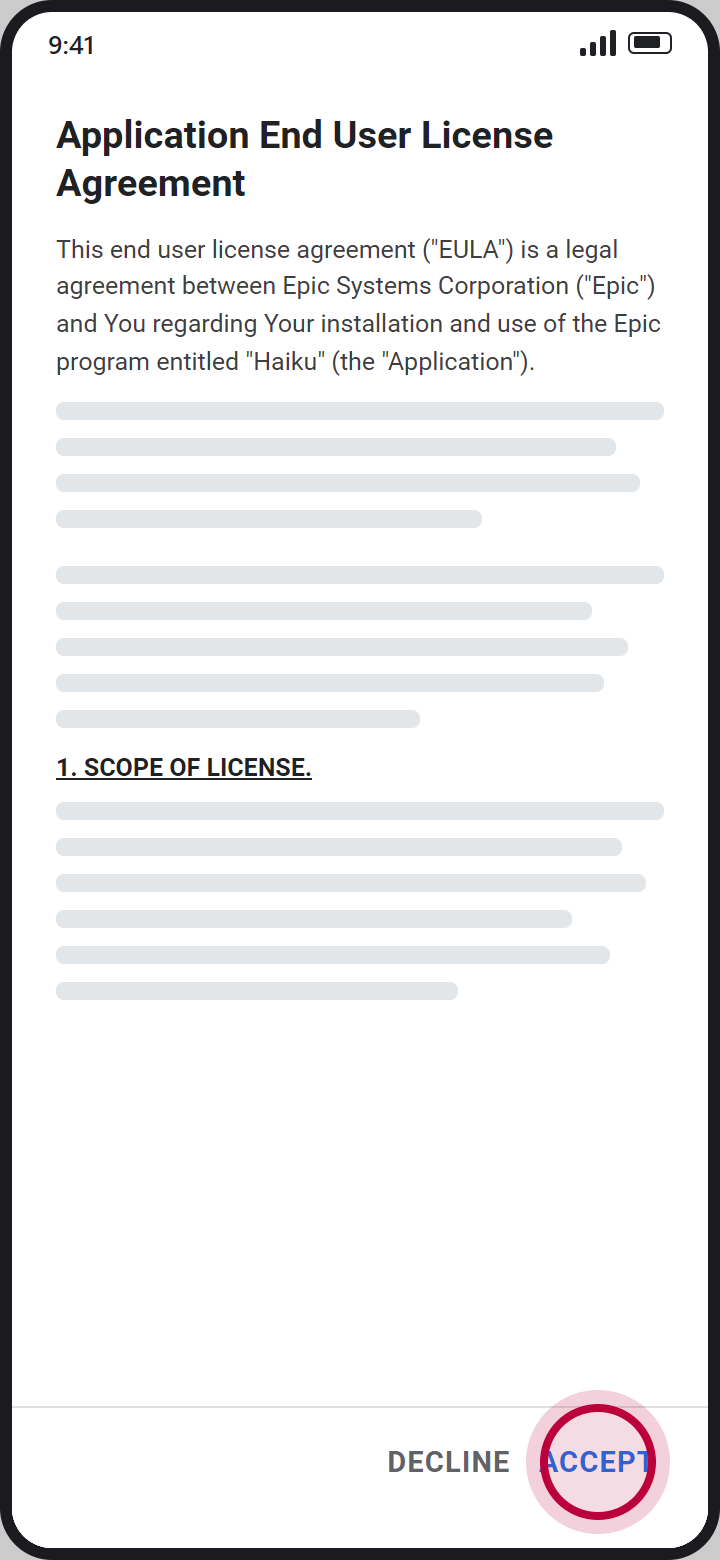
2Accept the agreement
The first time you open the app, it asks you to accept the license agreement. Tap Accept.
3. Scan the QR code for your app
Use the Haiku code on a phone and the Canto code on an iPad. Scan it with the device's camera. The app opens and asks to add the configuration: tap OK.
Reading this on the phone you are setting up? Open this page on a computer so you can scan the code.

HAIKU (PHONE)

CANTO (IPAD)
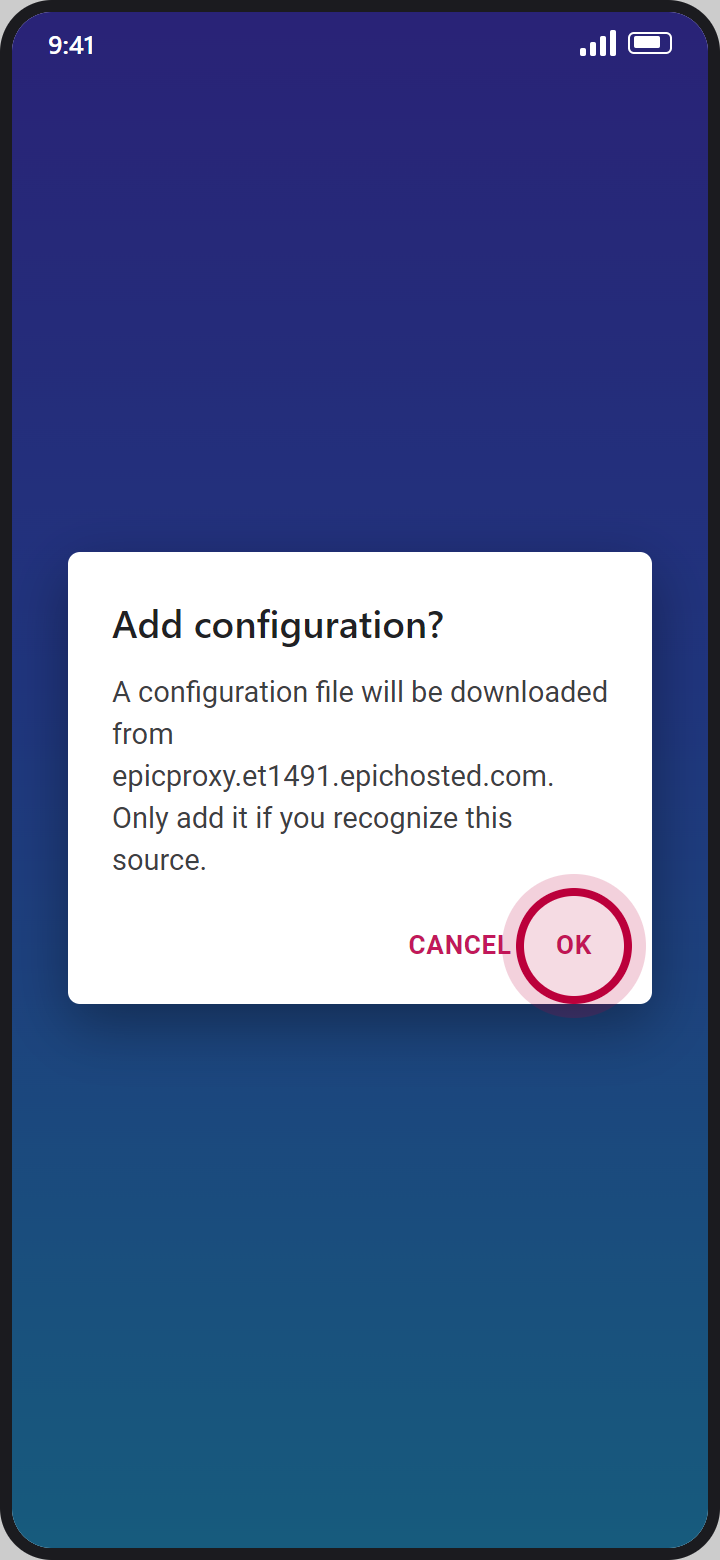
After you scan: tap OK.
Sign in with MFA
Steps 4 to 10: your Freeman username and password, then approve the sign-in on your phone.
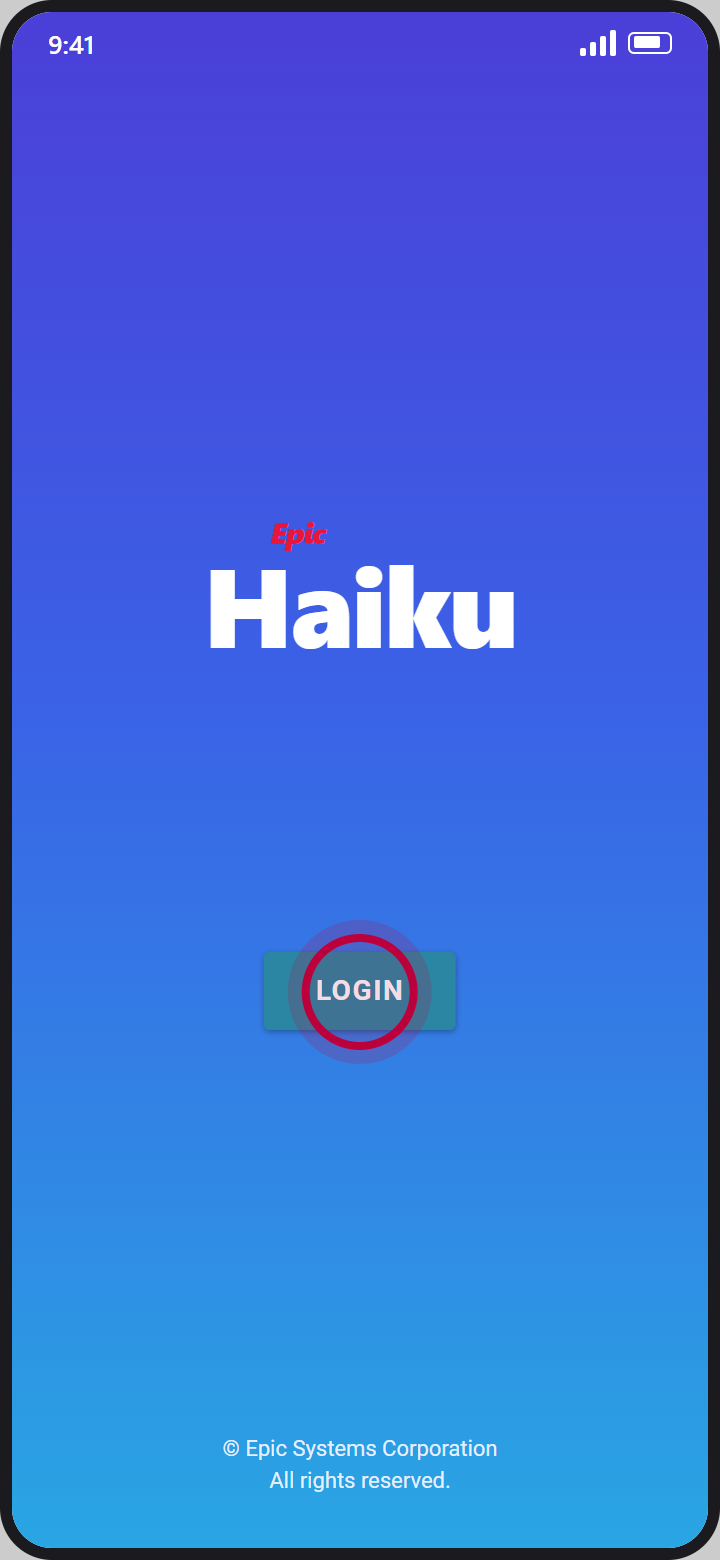
4Tap Login
You are now on the main login page. Tap Login.
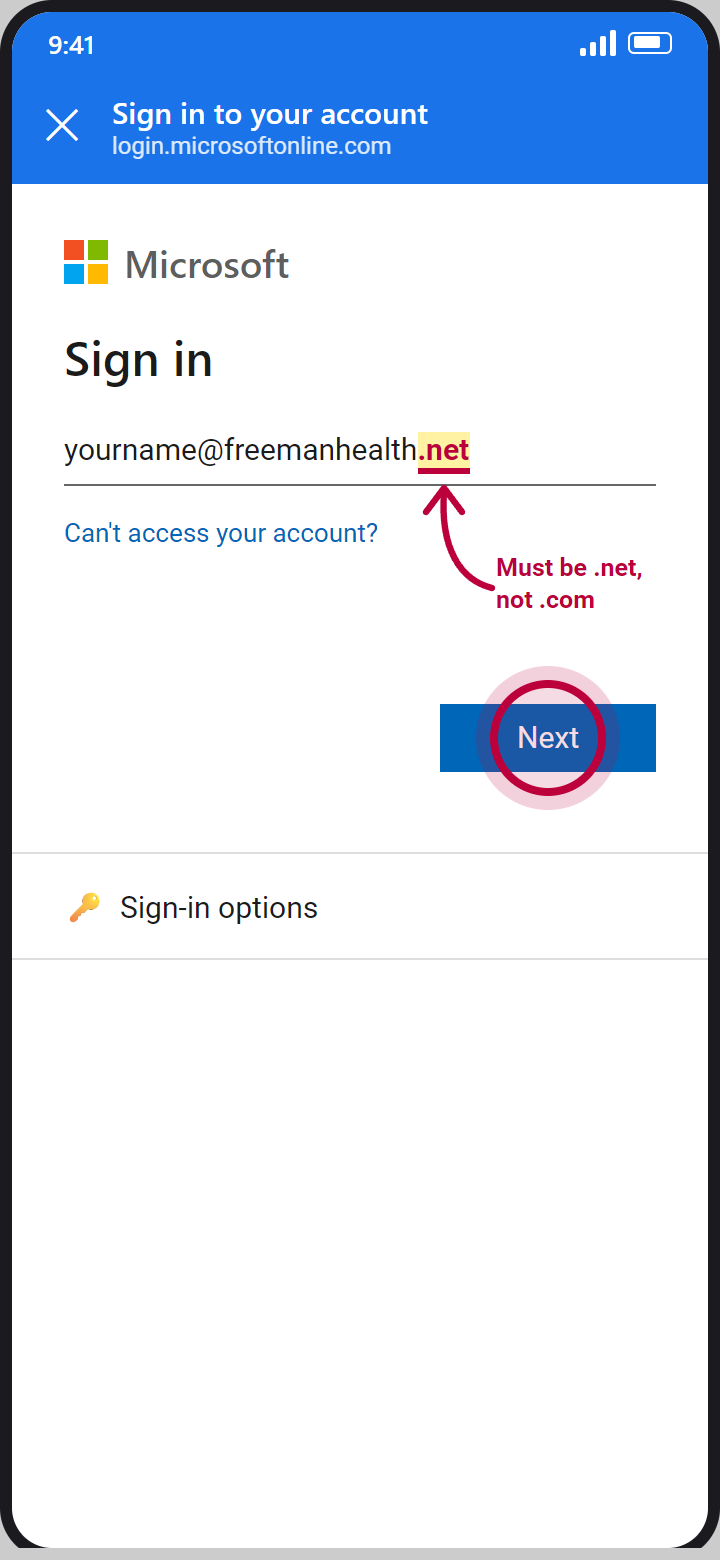
5Enter your username
On the Microsoft sign-in page, enter your Freeman username followed by @freemanhealth.net, then tap Next. It must be .net, not .com.
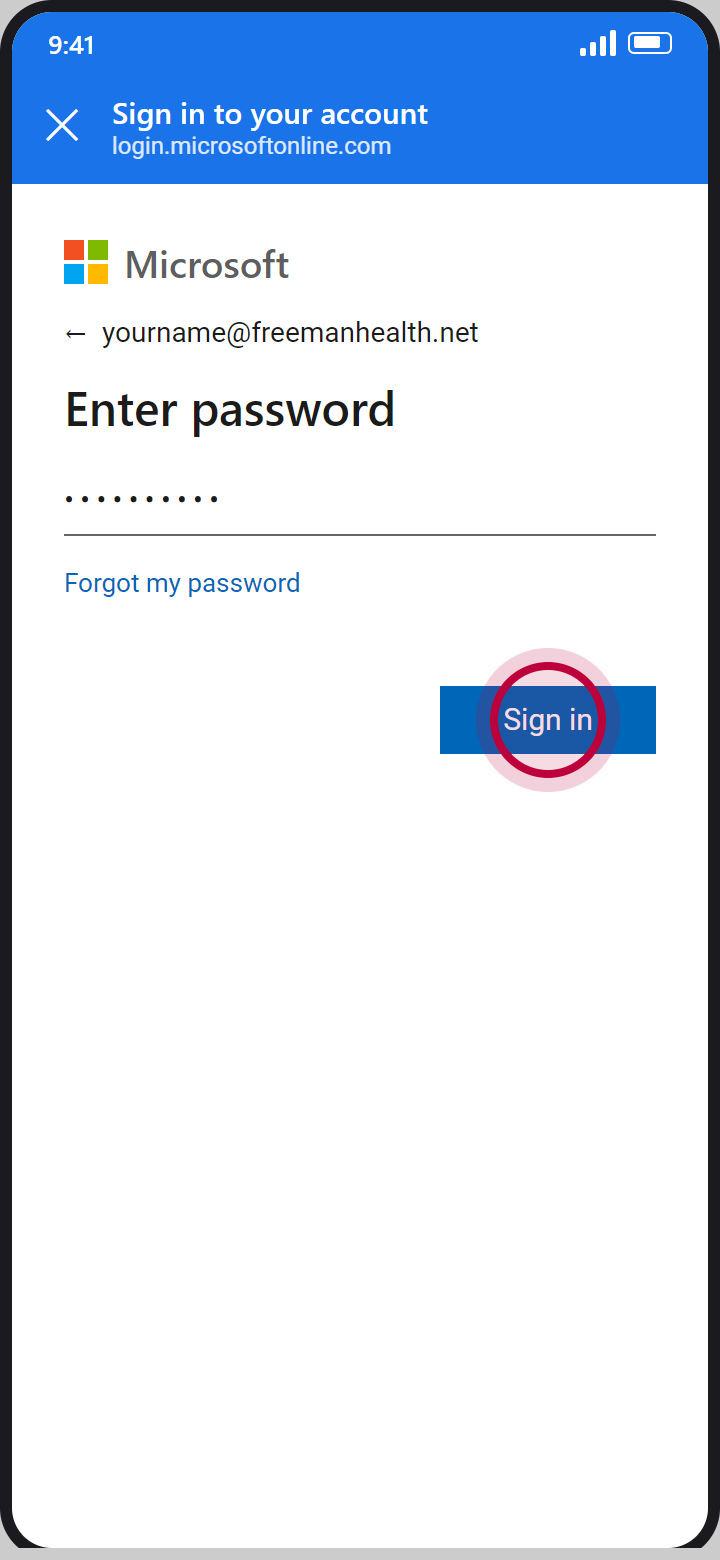
6Enter your password
Enter your password: the same one you use for Freeman computers, Mobile Heartbeat, and Epic. Tap Sign in.
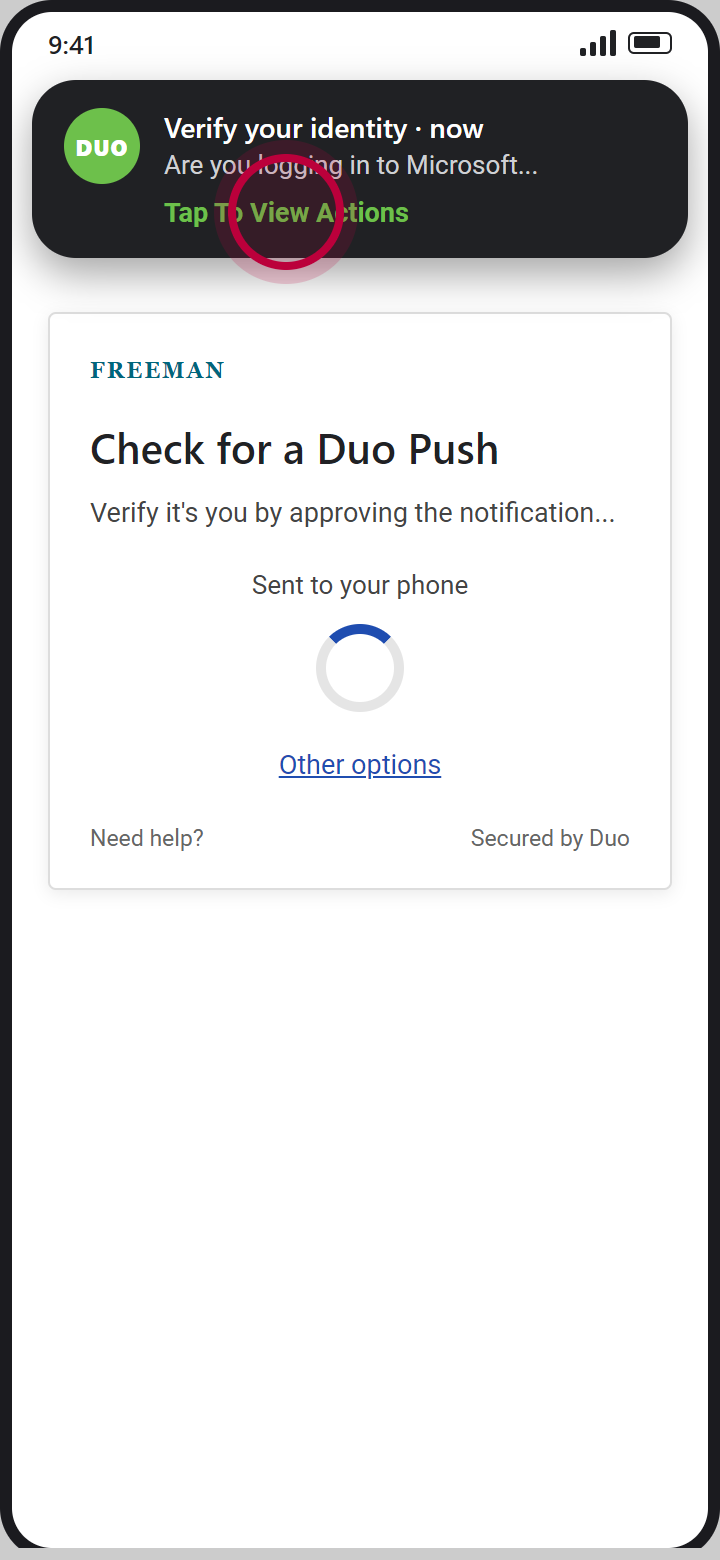
7aOpen the Duo prompt
Next comes multifactor authentication (MFA), such as Duo Mobile or Microsoft Authenticator. This guide shows Duo. On the notification, tap Tap To View Actions.
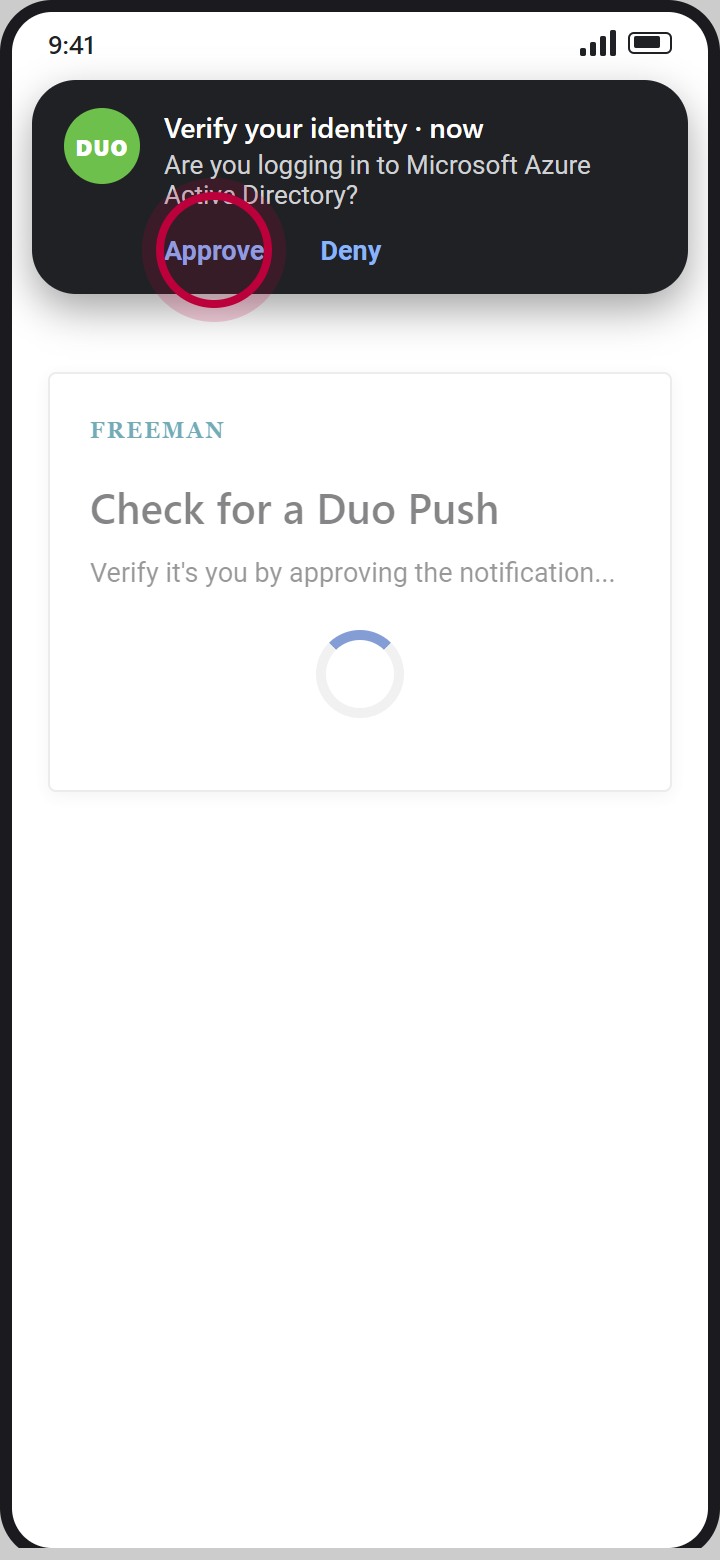
7bTap Approve
Then tap Approve.
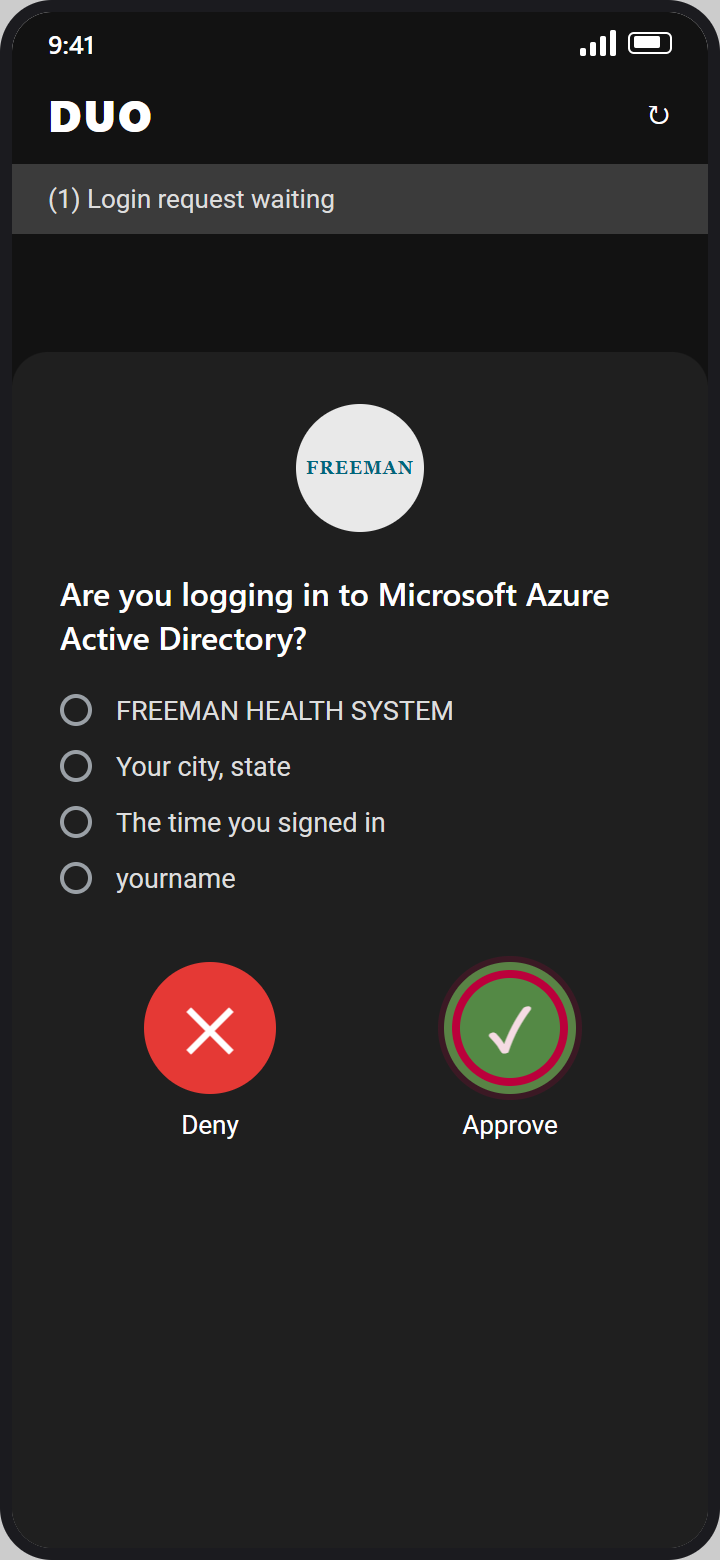
8Or approve in the Duo app
You can also tap the notification itself to open the Duo app, and approve there.
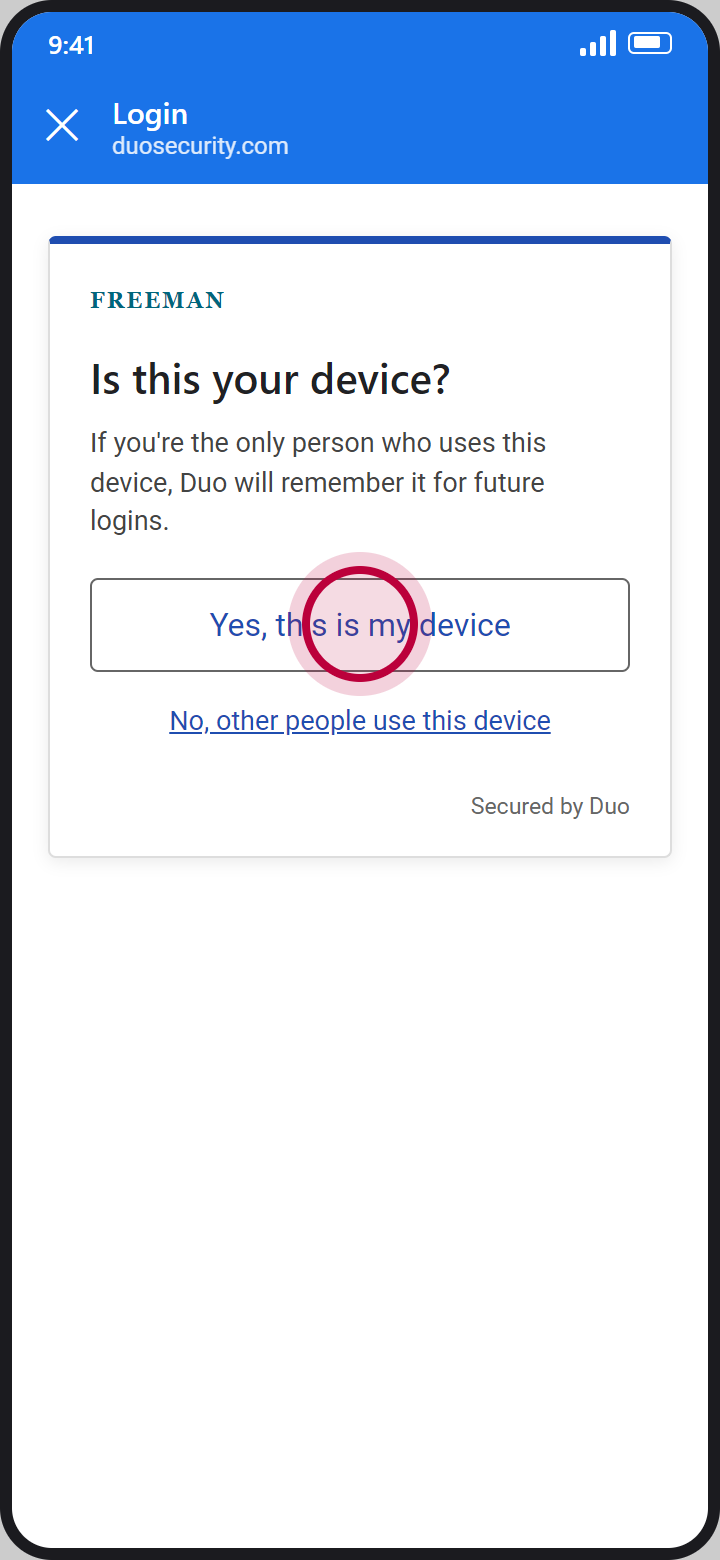
9Confirm your device
Once approved, tap Yes, this is my device to confirm this is your device.
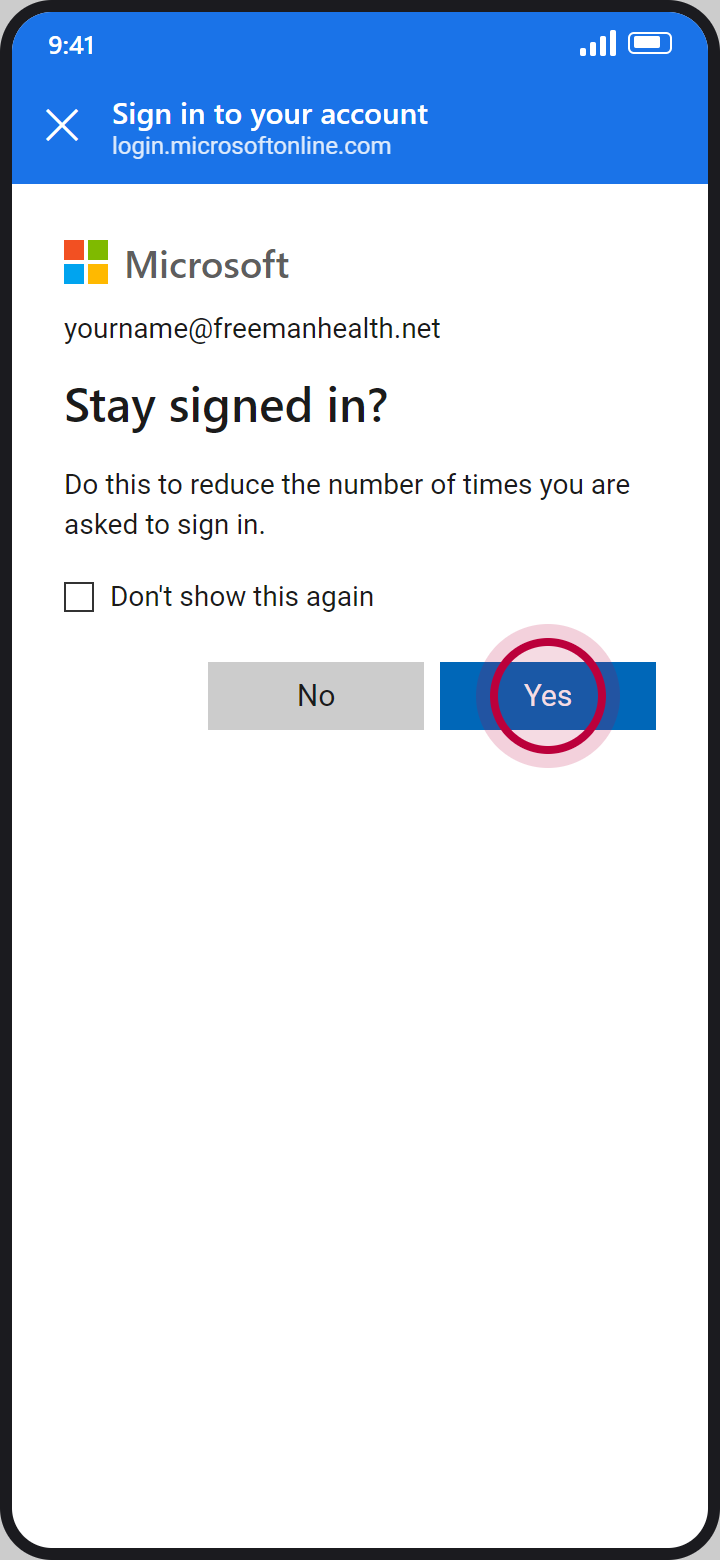
10Stay signed in
Tap Yes to stay signed in. You are taken back to Haiku, signed in.
Finish setup
Steps 11 to 13, back in Haiku.
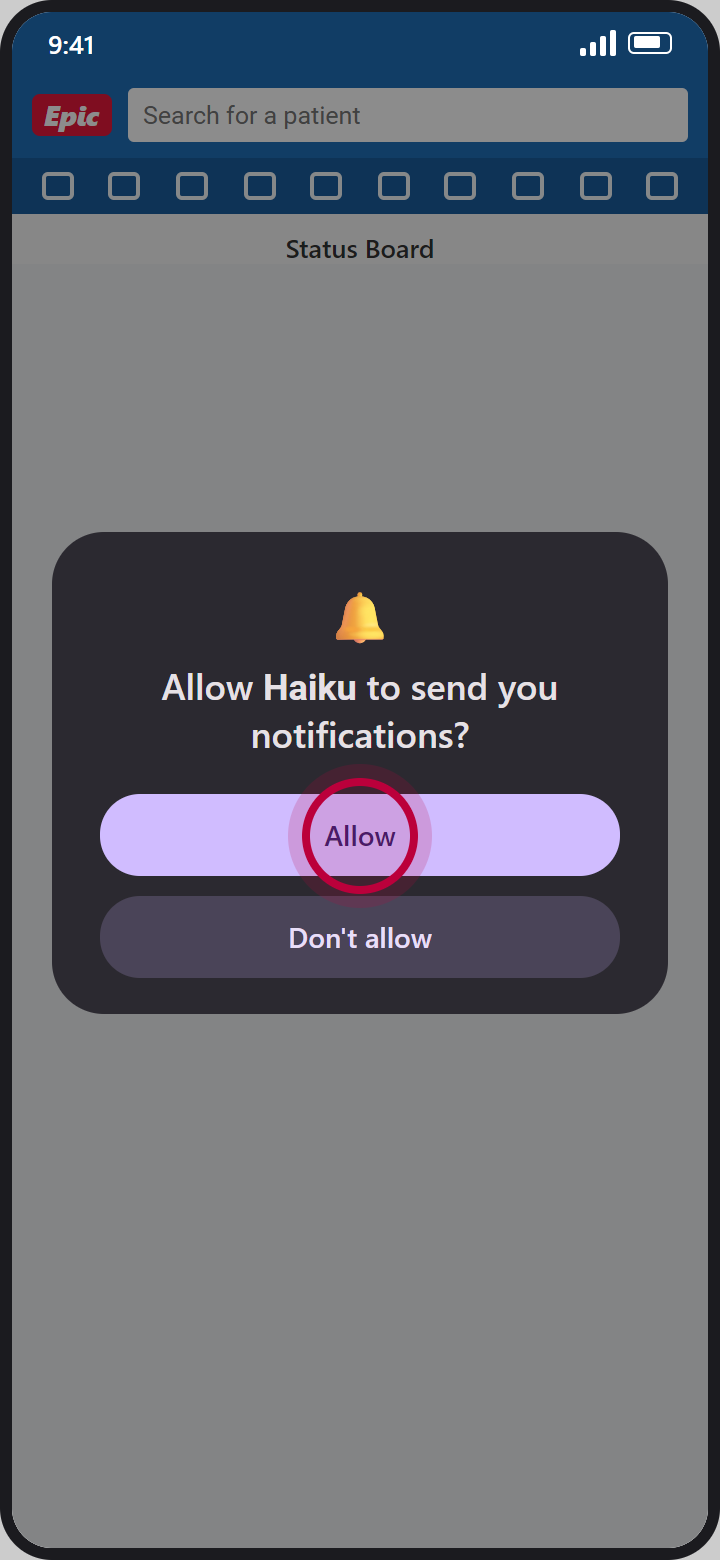
11Allow notifications
Allow the pop-up for notifications.
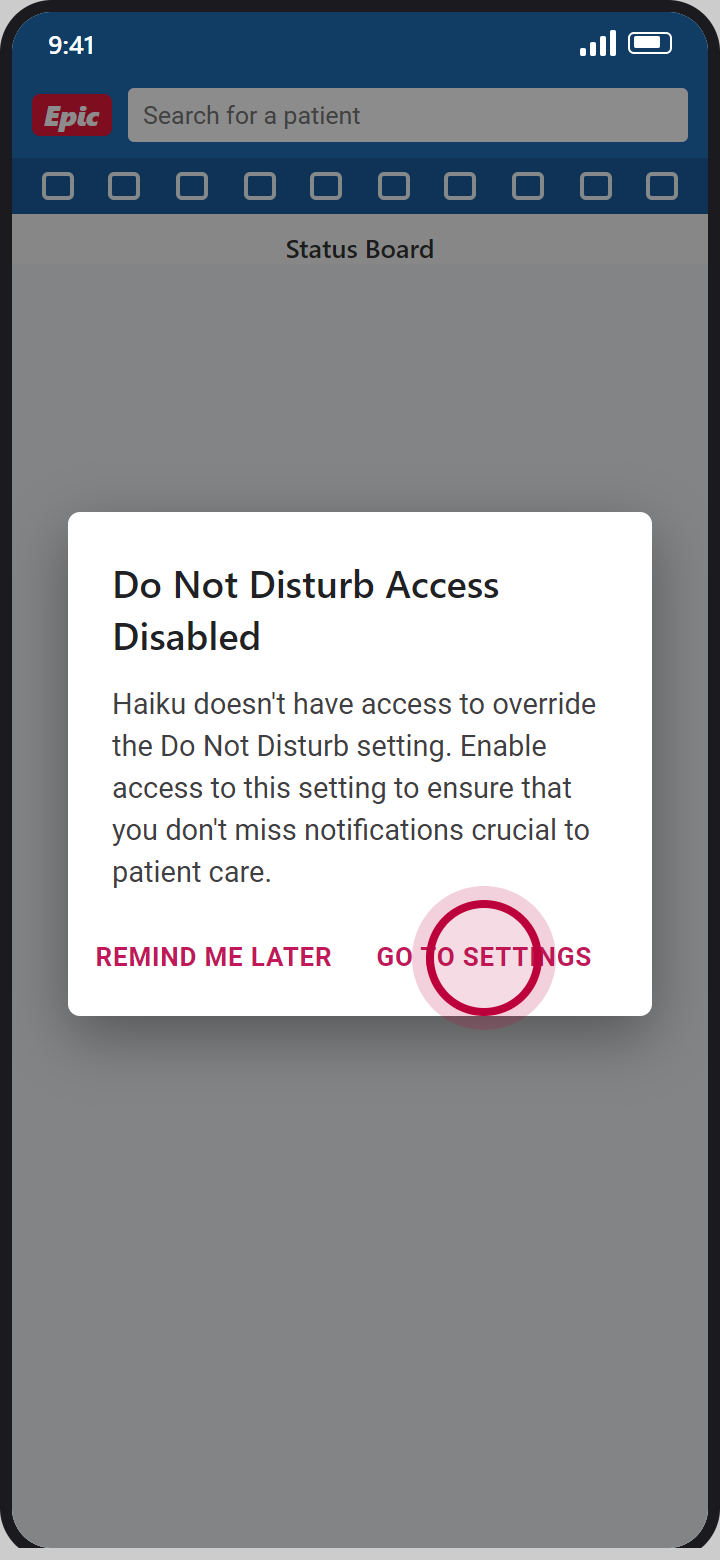
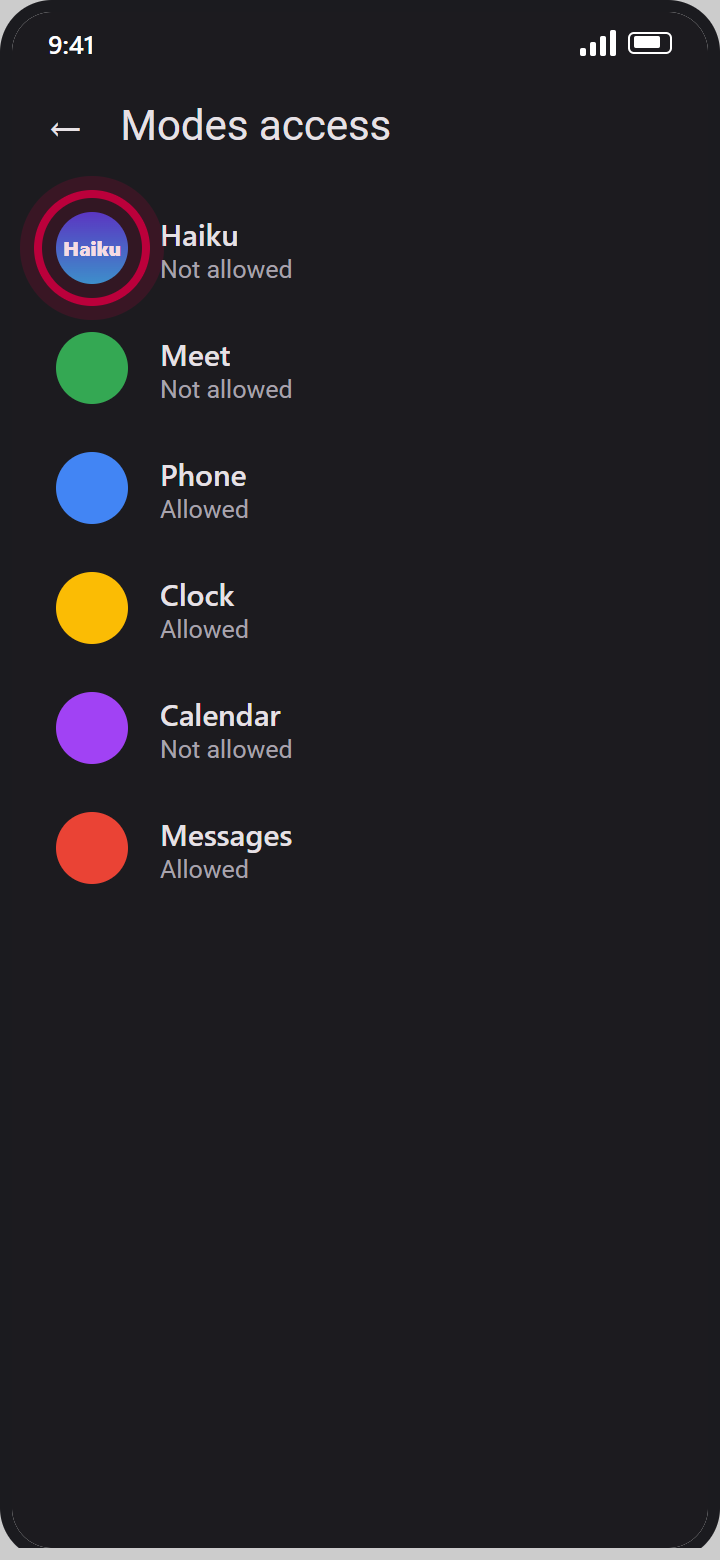
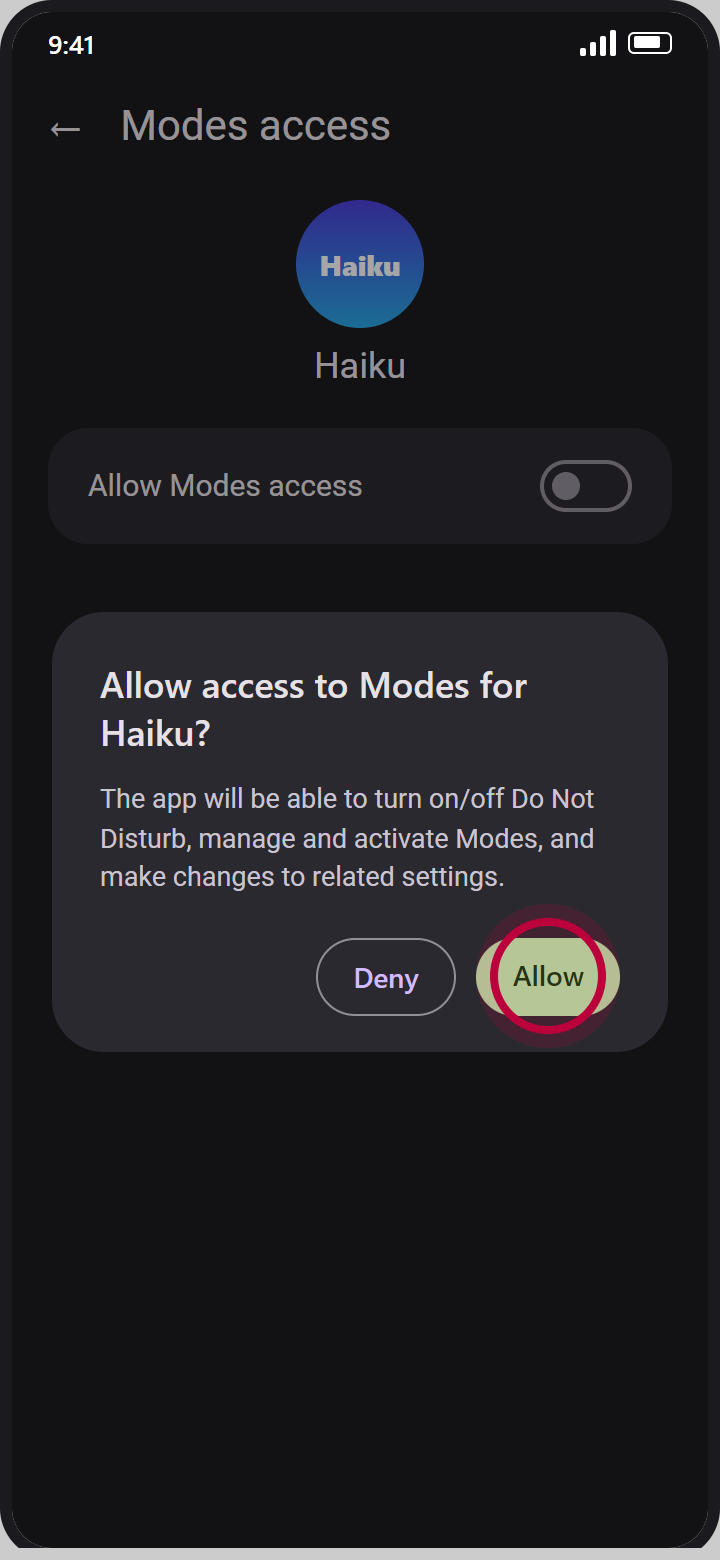
12aDo Not Disturb, some devices
Some devices also show a pop-up about Do Not Disturb. If you get it, tap Go to Settings.
12bChoose Haiku
In the list of apps, tap Haiku.
12cTurn it on for Haiku
Turn on access for Haiku and tap Allow.
13You are signed in
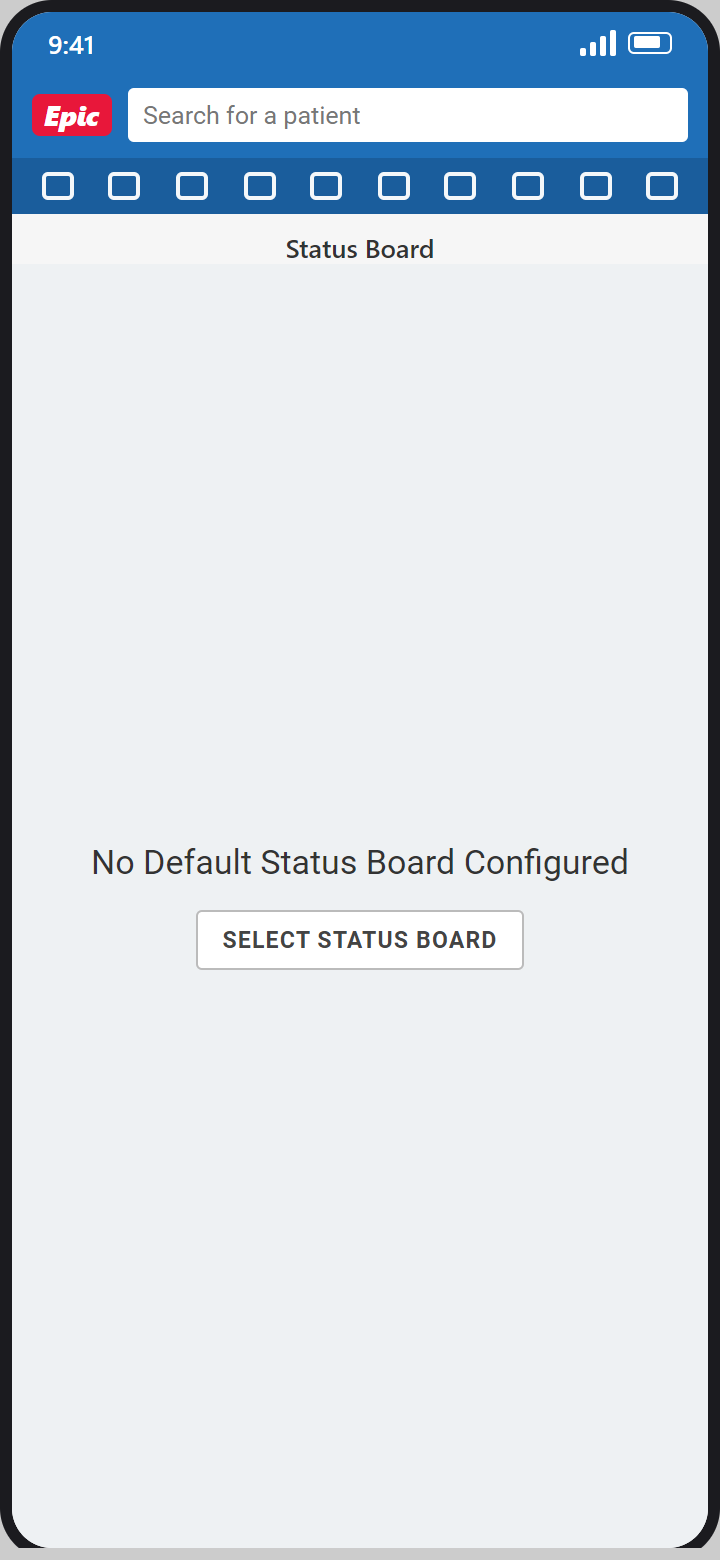
Congratulations, you are signed in and can use Haiku or Canto.
Stuck at any step? IT Support Help Desk 417-347-4500 or fhsitsm.saasit.com.