
The Golden Rules of In Basket
Six habits that keep every message clear, keep the record complete, and keep the work moving for everyone who shares your In Basket and your In Basket pools. Then the toolbar, and tips for refill requests, pool maintenance, and results follow-up.
The golden rules
Send messages with purpose.
“Please advise” is not value added.
Send messages only when there is a task to complete or important clinical information to communicate. Include a clear request, recommendation, or desired action, along with any relevant clinical history or context. Whenever possible, prepare the next step for the recipient before sending. For example, pend the appropriate order.
Keep the conversation in the same encounter.
Before creating a telephone encounter, check Chart Review for an existing encounter and add your update there when appropriate. Use Search to find related patient messages. Even for non-visit care tasks, an encounter where this conversation may have already been started could be available.
When the work is done, “done” the work.
Use Done to complete a task and remove it from your In Basket. Want to temporarily remove the message and follow up later? Use Follow-up.
Done removes the task from an entire pool, so make sure nobody else needs to act on it. Need to see a message again? Go to your Completed Work or Sent Messages folders.
Done does not sign the encounter.
Send messages to one pool or one person.
Limit your recipient list to one person or pool, so it is clear who needs to perform the task. Multiple recipients create separate message threads and can make ownership unclear. If others need to be involved, use a sequential workflow. In your message you can include wording such as, “After completing X, send to Y, and then to Z.”
Understand what is saved to the chart and what is visible to the patient.
- Notes are saved to the chart and are visible to the patient in
 MyChart.
  Reply,
  Forward (the buttons with the floppy disk icon), or Routing Comments within an encounter are saved to the chart and are not in MyChart.
- Staff messages are not visible to the patient and are not saved to the chart, so they are not visible to the care team later. Don’t use them to communicate about patient care. Create an encounter if you need to save information to the chart.
Sign completed MyChart messages.
Sign completed MyChart messages to close the conversation and prevent patients from continuing to use the same thread for unrelated questions.
Get to know your tools
The In Basket buttons you will use most, and what each one does.
| TOOL | WHAT IT DOES |
|---|---|
 QuickAction QuickAction | Speed up common actions, like writing the same result note, by turning repetitive tasks into simple shortcuts. |
Report tabs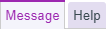 | Reference the informational reports to get the context you need without having to open the chart. Not sure why you received a task or how to complete it? Check the Help tab. |
 Done Done | Indicate that any necessary follow-ups are complete and remove the message from your In Basket. Marking a task as Done will complete it for everybody in a pool. |
 Encounter Encounter | Open the encounter associated with the selected message to place new orders or to adjust existing ones, saving it to the chart. |
 Note Note | Save clinically significant information, such as symptoms or care advice, to the encounter. The contents of your note appear in the Notes tab of Chart Review and can be visible in MyChart. |
| Reply | Respond to the sender with a non-clinical task or question, such as, “call the patient today.” Your message is saved in the encounter summary. |
 Reply All Reply All | Respond to all recipients on a group message with a non-clinical task or question. Your message is saved in the encounter summary. |
| Forward | Include others in the discussion by sending your non-clinical task or question and the conversation history to someone new. The message is saved in the encounter summary. |
| MyChart | The message will be visible to the patient in MyChart. |
 Baton Baton | Use the baton to indicate to others seeing the same message that you are working on the task. |
 Follow-up Follow-up | Temporarily remove a message from your In Basket and postpone it until a later date. |
 Filter Filter | Use and create filters to zero in on the messages you are responsible for. Filter by values such as work not taken by others or the encounter provider. |
 Sign Encounter Sign Encounter | Sign the encounter when all team members have completed their documentation and follow-ups. |
Special tips for refill requests
Opening and completing
Always open refill requests using the Encounter button. This decreases the number of clicks while also allowing you to review the chart and Replace historical meds. Sign the encounter when done, and the message is marked Done in your In Basket.
Historical meds
Open the encounter using the Encounter button. Use the Replace option to create a new medication order in Epic. If Replace isn’t appropriate, Refuse the refill request and enter a new medication order.

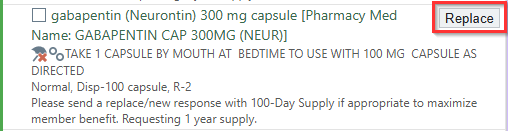
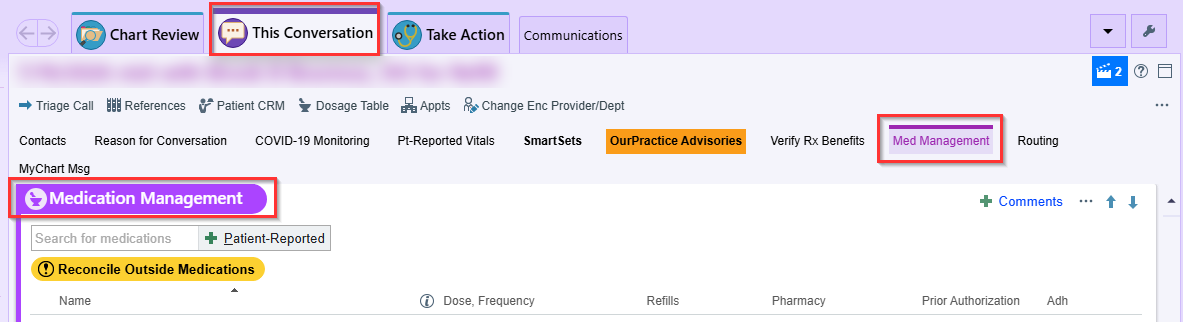
In the refill encounter, This Conversation and the Med Management section open Medication Management, where historical meds are replaced or refused.
Special tips for pool maintenance
Searching for and finding completed work
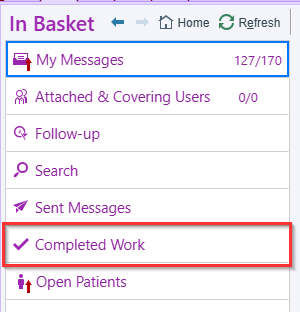
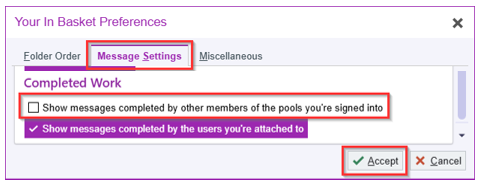
You can view completed work within the Completed Work section. If you need to be able to find completed work that was completed by someone else within a shared pool, adjust your Preferences, Message Settings to Show messages completed by other members of the pools you’re signed into.

Special tips for providers: results follow-up
Keep everything in the encounter.
Use the encounter Epic opens for you. Clicking Encounter,  Telephone Call, or
  Result Management all open the encounter you need. Do your documentation there.
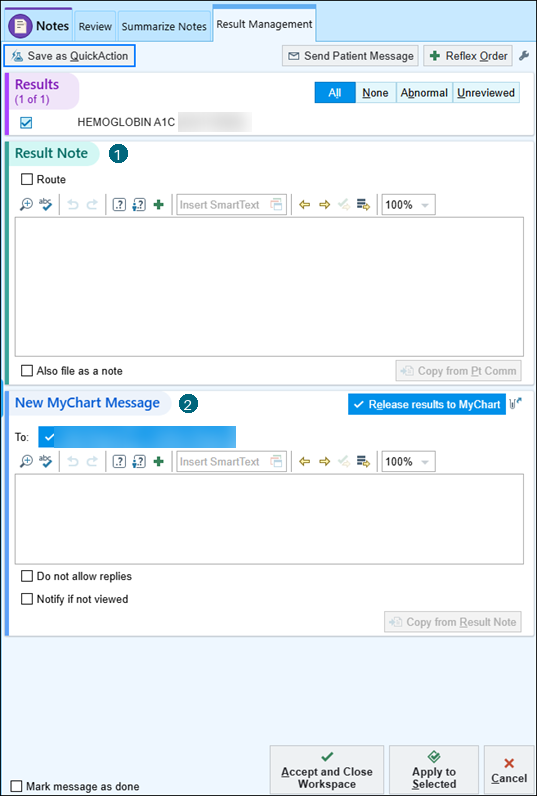
Think of Result Management as a provider’s home base
Result Management is where you go for:
- Writing a result note to document assessment and follow-up.
- Sending a MyChart message about the results.
- Releasing results to MyChart (if they’re not already released).
- Placing follow-up orders.
- Routing to another clinician or pool for additional follow-up (the result note is sent for context, too).
- Reviewing the result report.
Document what you thought, did, and what’s next
A good result note includes:
- Assessment: What did you, or the provider you’re documenting for, think about the result? Normal, abnormal, expected, unexpected?
- Action: What steps have been taken? For example, placed a follow-up order, or referred to a specialist?
- Next steps: What needs to happen? Is follow-up complete, or does someone need to act?
Write only a MyChart message if the result note would be the same.
What’s saved to the chart and what’s visible to the patient?
| TOOL | USE FOR | SAVED IN RESULTS FOLLOW-UP ENCOUNTER? | SAVED WITH RESULT IN CHART REVIEW? | VISIBLE IN MYCHART? |
|---|---|---|---|---|
| 1Result Note (in Result Management) | Communicate the assessment and actions with the care team | Yes | Yes | No (by default) |
| 2MyChart Message | Communicate results to the patient | Yes | Yes | Yes |
| Reply / Forward and Routing Comments | Send a non-clinical task or question to another clinician | Yes | No | No |
| Follow-up Order | Place additional orders in response to a result | Yes | No | No |
Need help
Stuck in your In Basket? Start with who to ask on Day One, or call the IT Help Desk at 417-347-4500. For the expectations behind these rules, see EMR Etiquette: In Basket.